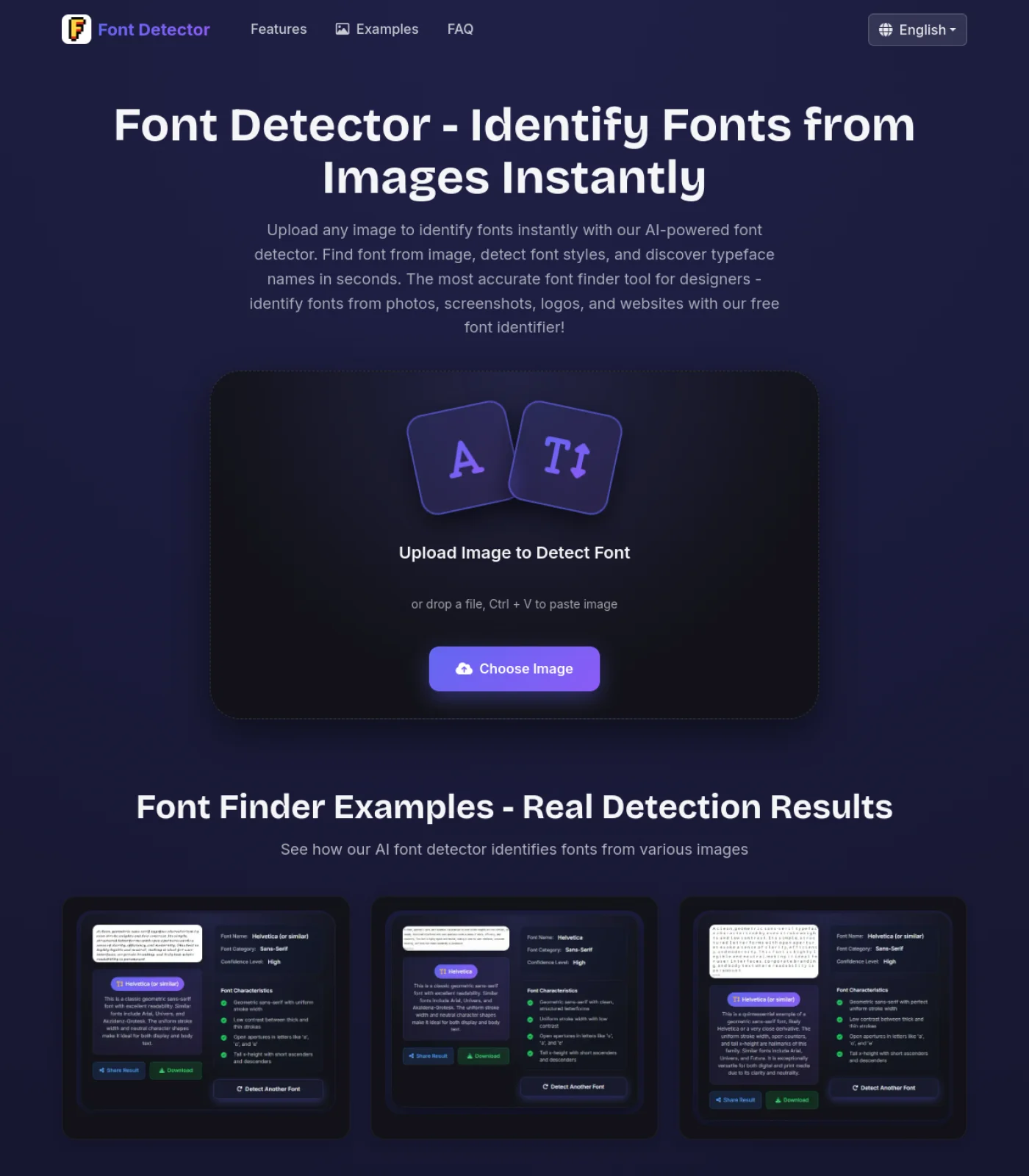
Website Font Detector for Screenshots

Upload a screenshot from any website to identify the font in seconds. This website font detector is built for webpage images, hero banners, logos, landing pages, and other text you can see but cannot easily inspect. If the font lives inside a screenshot instead of live HTML, our website font detector gives you a fast way to find the typeface, review the style, and compare similar alternatives without installing an extension.

Upload a Website Screenshot

Drop a webpage screenshot, paste an image, or choose a file

Website Font Detector Examples

Use the same workflow for website screenshots, navigation bars, landing page headlines, ad creatives, and logo text embedded on a webpage.

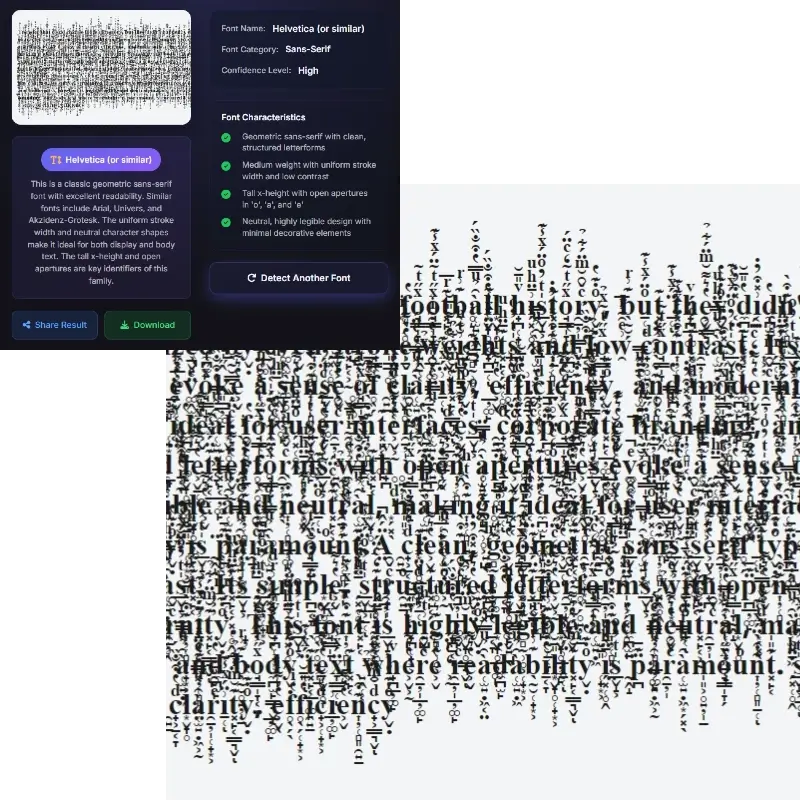
Website font detector example showing a clean website headline screenshot
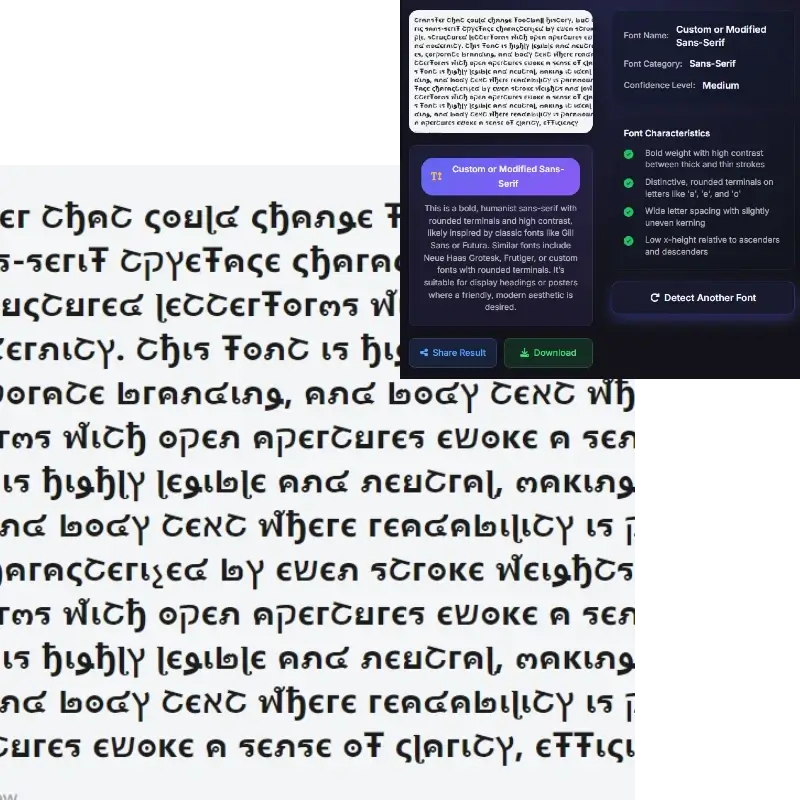
Font finder from website example with a marketing banner style screenshot
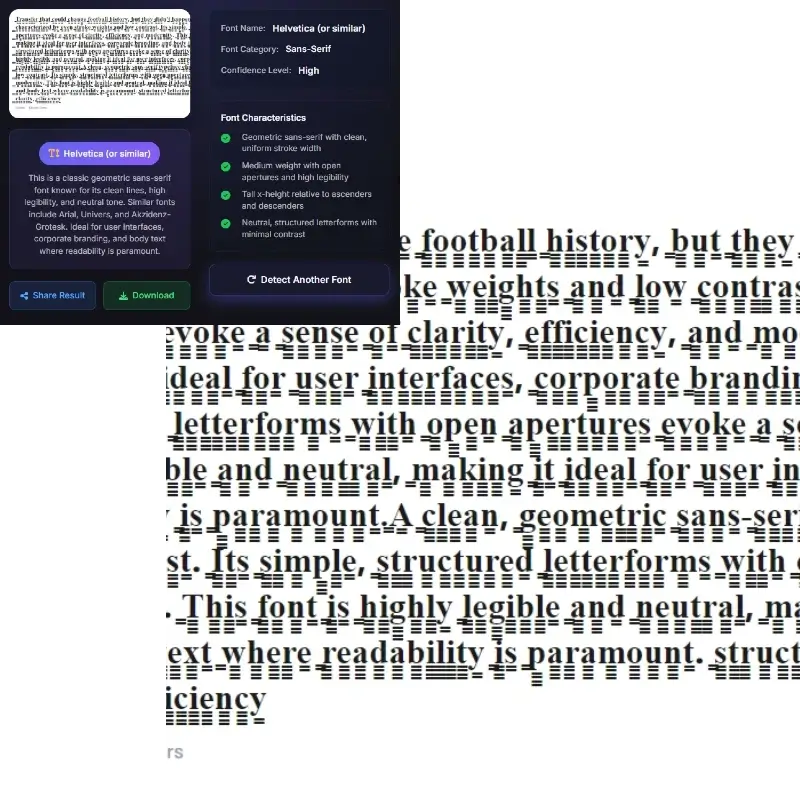
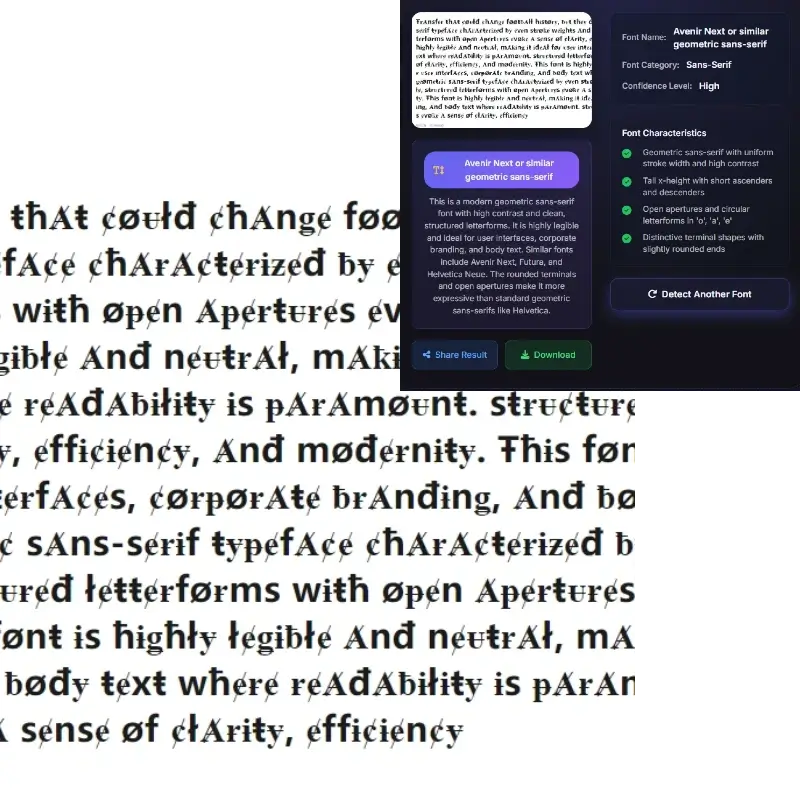
Website fonts detector example with a brand style web graphic

How to Use the Website Font Detector

Step 1

Capture the Website Area You Care About

Take a screenshot of the headline, banner, button, product card, or logo text you want to identify. A website font detector works best when the text is clear, cropped tightly, and large enough to show letter shapes, weight, spacing, and contrast.

Step 2

Upload the Screenshot to Our Tool

Add your image and let the website font detector inspect the visible letterforms. This workflow is especially useful when the text comes from a hero image, a promotional graphic, or a static screenshot where browser extensions cannot read the CSS directly.

Step 3

Review the Font Name and Alternatives

See the likely font name, font category, confidence level, and similar suggestions. If the exact website font is custom or commercial, the detector still helps you find a close match so you can recreate the visual style faster.

When a Website Font Detector Is the Right Tool

The highest intent behind this query is simple: users can see a font on a website, but they do not always have an easy way to inspect it. These are the most common cases where screenshot-based website font detection is useful.

You Only Have a Screenshot

A lot of people search for a website font detector after saving inspiration from a landing page, social ad, mobile browser tab, or competitor homepage. In that situation, you do not need a developer workflow first. You need a tool that can read the screenshot, analyze the letterforms, and point you to the most likely font or a practical alternative.

The Text Is Embedded in a Banner or Graphic

Many websites use text inside hero banners, promotional graphics, image cards, and logo treatments. Browser extensions and inspect element are excellent for live HTML text, but they cannot reliably tell you the font inside a flattened image. A website fonts detector built for screenshots is the better fit when the typography is part of the visual asset itself.

You Found the Font on Mobile

Sometimes the search starts on a phone. You notice a strong typeface on a product page, save a screenshot, and want the answer immediately. A screenshot-first website font detector lets you move from mobile inspiration to a usable font shortlist without switching to desktop developer tools.

You Need a Similar Font Fast

Designers and marketers often do not need a perfect forensic match. They need a website font detector that can help them find a very similar font for a pitch deck, ad mockup, landing page refresh, or brand concept. That is why similar alternatives matter almost as much as the primary result on this type of page.

Website Font Detector vs Browser Extensions vs DevTools

People searching for a website font detector are usually comparing three different workflows. The best option depends on whether the text is live on the page or embedded inside an image.

Live Website Workflow

Browser Extension

A browser extension is often the fastest way to identify the font on live HTML text. It reads the rendered font information directly from the page and can usually show the font family, size, weight, and color without taking a screenshot first.

  • Best for live text on active websites
  • Often shows font family, weight, and size instantly
  • Helpful for Google Fonts and standard web font stacks
  • Less useful for text that is baked into an image

Best for: developers, designers, and researchers working on live websites

Developer Workflow

DevTools

Chrome and Firefox developer tools can reveal the rendered font and related CSS details for an inspected element. This is powerful, but it assumes you are comfortable navigating code panels and that the text is not locked inside a graphic.

  • Can reveal the exact rendered font on live elements
  • Useful for debugging fallback fonts and CSS stacks
  • Best when you need technical inspection details
  • Not the easiest option for screenshots or non-technical users

Best for: font audits, CSS inspection, and advanced web typography debugging

Detect Fonts from Website Screenshots Without Guesswork

A strong website font detector should do more than repeat the phrase 'what font is this.' It should help you move from a screenshot to a practical answer. This page is built for the real world cases where designers and marketers save a screenshot from a homepage, pricing page, SaaS dashboard, or ecommerce product page and need the font quickly. Our tool reads the visible text from the image, compares the structure of the letters, and returns a likely font name along with category and confidence. That makes it a useful font finder from website screenshots when you cannot access the original design file or the live source code.

Website font detector analyzing a webpage screenshot

Built for Hero Banners, Web Graphics, and Embedded Text

Not every website font lives in a clean paragraph tag. Modern websites rely on hero images, comparison charts, sale banners, and branded cards where the typography is flattened into a graphic. That is where a screenshot-based website fonts detector becomes especially valuable. Instead of depending on CSS inspection, it treats the visible type as an image recognition problem. If you are trying to identify the font in a hero section headline, a callout banner, a homepage promo tile, or a logo treatment displayed on a website, this page is designed to match that intent better than a generic live-text inspector.

Font detector by website screenshot for banner and web graphic text

Find Similar Alternatives When the Website Uses a Custom Font

One reason people search for a website font detector is that many sites use premium, modified, or custom brand typefaces. In those cases, even if the exact answer is hard to confirm, a useful detector should still help you move forward. This page supports that broader intent by focusing on recognition plus alternatives. You can use the result to find a visually similar option, compare categories such as serif, sans-serif, script, or display, and make a design decision faster. For landing page redesigns, pitch decks, UI mockups, and brand exploration, a close match is often more valuable than endless manual searching.
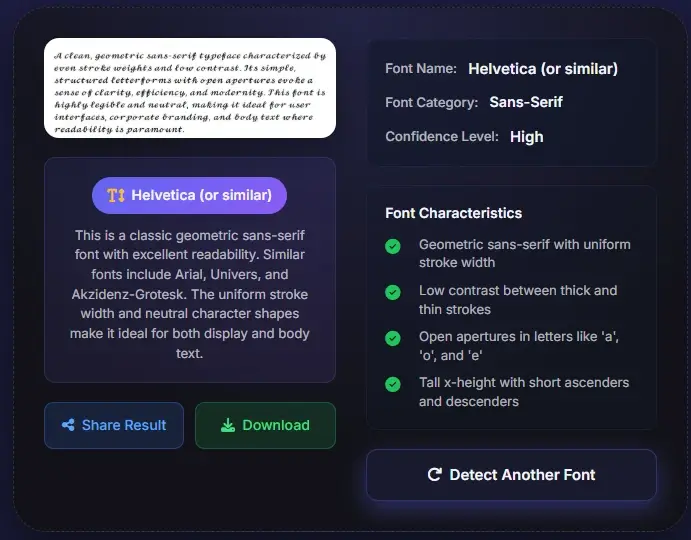
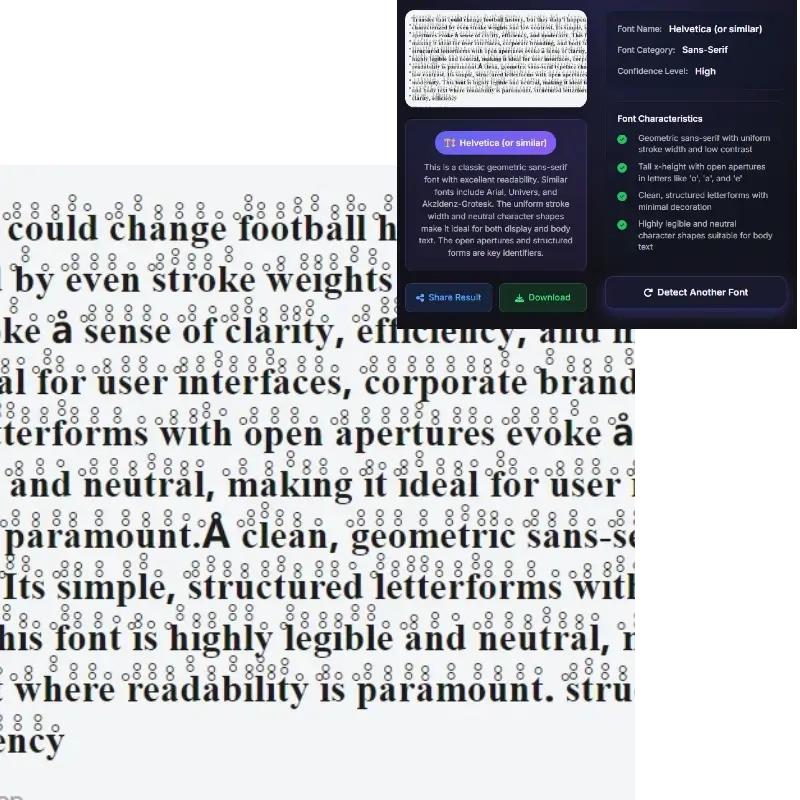
Website font detector result with similar alternative fonts

A Simple Entry Point Before You Reach for CSS Inspection

There is a place for browser extensions and a place for DevTools. If the text is live on the page and you are comfortable inspecting CSS, those methods can expose technical details directly. But users searching for website font detector often want a faster, lower-friction answer first. This page gives them that path. Upload the screenshot, review the result, and then decide whether you need deeper verification. In practice, that makes the page useful for both non-technical users and experienced teams doing quick competitive research, typography audits, and website inspiration gathering.

Real homepage screenshot of Font Detector used as a website font detector example

Website Font Detector FAQ

How can I find out what font a website is using?

There are two main ways to do it. If the text is live on the page, a browser extension or DevTools can inspect the rendered font directly. If you only have a screenshot, or the text is part of a hero image, banner, logo, or graphic, a website font detector like this page is the better workflow. Upload the screenshot and let the tool analyze the visible letterforms. That gives you a likely font name plus related alternatives without needing source-code access.

Can this website font detector identify a font from a screenshot?

Yes. This page is specifically designed for screenshot-based font detection. If you saved a homepage, landing page, mobile browser view, ad creative, or web banner as an image, you can upload that screenshot and let the website font detector analyze the visible typography. For the best result, crop the image tightly around one line of text, make sure the letters are clear, and avoid motion blur or heavy compression.

What is the difference between a website font detector and a browser extension?

A browser extension is strongest when the text is live HTML on a website because it can read the font information directly from the page. A website font detector is more useful when the text is embedded inside an image or when you only have a screenshot. In other words, extensions are ideal for live inspection, while this page is built for visual detection from webpage images, banners, logos, and saved screenshots.

Does this page work for hero banners, logos, and text inside web images?

That is exactly where this workflow is most helpful. Many websites place key typography inside banners, promotional graphics, cards, and logo treatments. In those cases, CSS inspection may not reveal the answer because the text is no longer a live webpage element. A screenshot-based website fonts detector can still inspect the visible letter shapes and help you identify the typeface or a close visual match.

What if the website uses a custom or paid font?

A website font detector can still be useful even when the exact website font is custom, modified, or commercially licensed. The result may point to the original family, a very close alternative, or a similar category with matching proportions and personality. That is often enough for practical work such as mockups, redesign proposals, brand references, and typography research. If you need technical confirmation, you can always follow up with browser inspection on the live page.

How do I get the most accurate result from a website screenshot?

Use a clear screenshot with readable text, crop closely to a single font style, and avoid placing several different headings in one upload. If possible, capture at desktop or retina resolution so the website font detector can see details like stroke width, serif shape, spacing, and contrast. Headline text, navigation labels, and button text usually work well as long as the letters are sharp and not heavily distorted by perspective or effects.